Ranks
Configuration
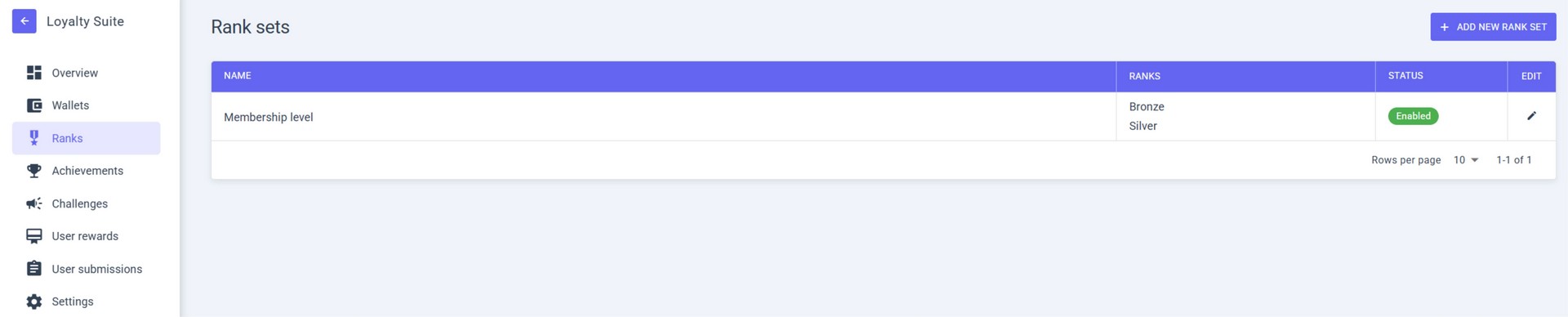
In the RANKS section, you can see a list of all your RANK SETS and their status.
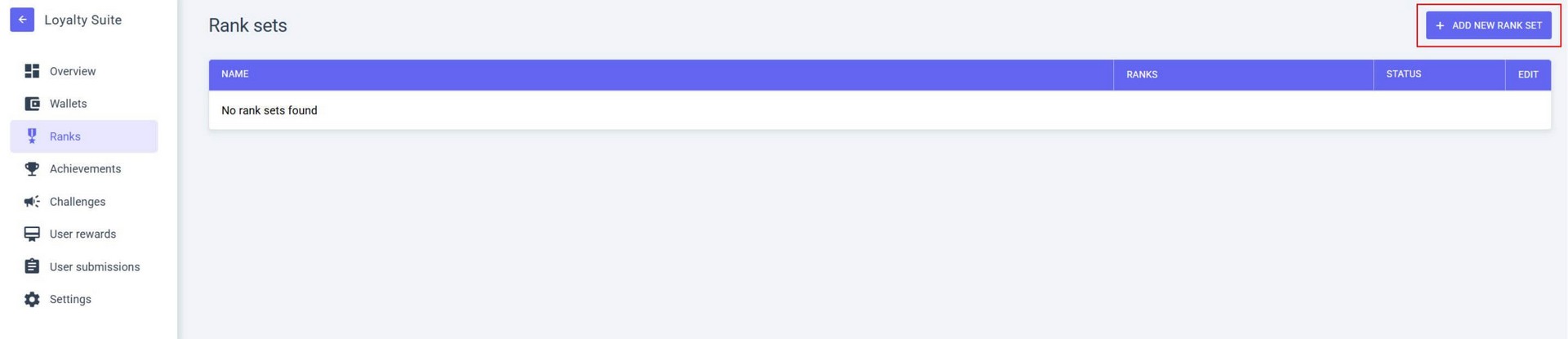
To create a RANK SET, select ADD NEW RANK SET.
Rank Set settings
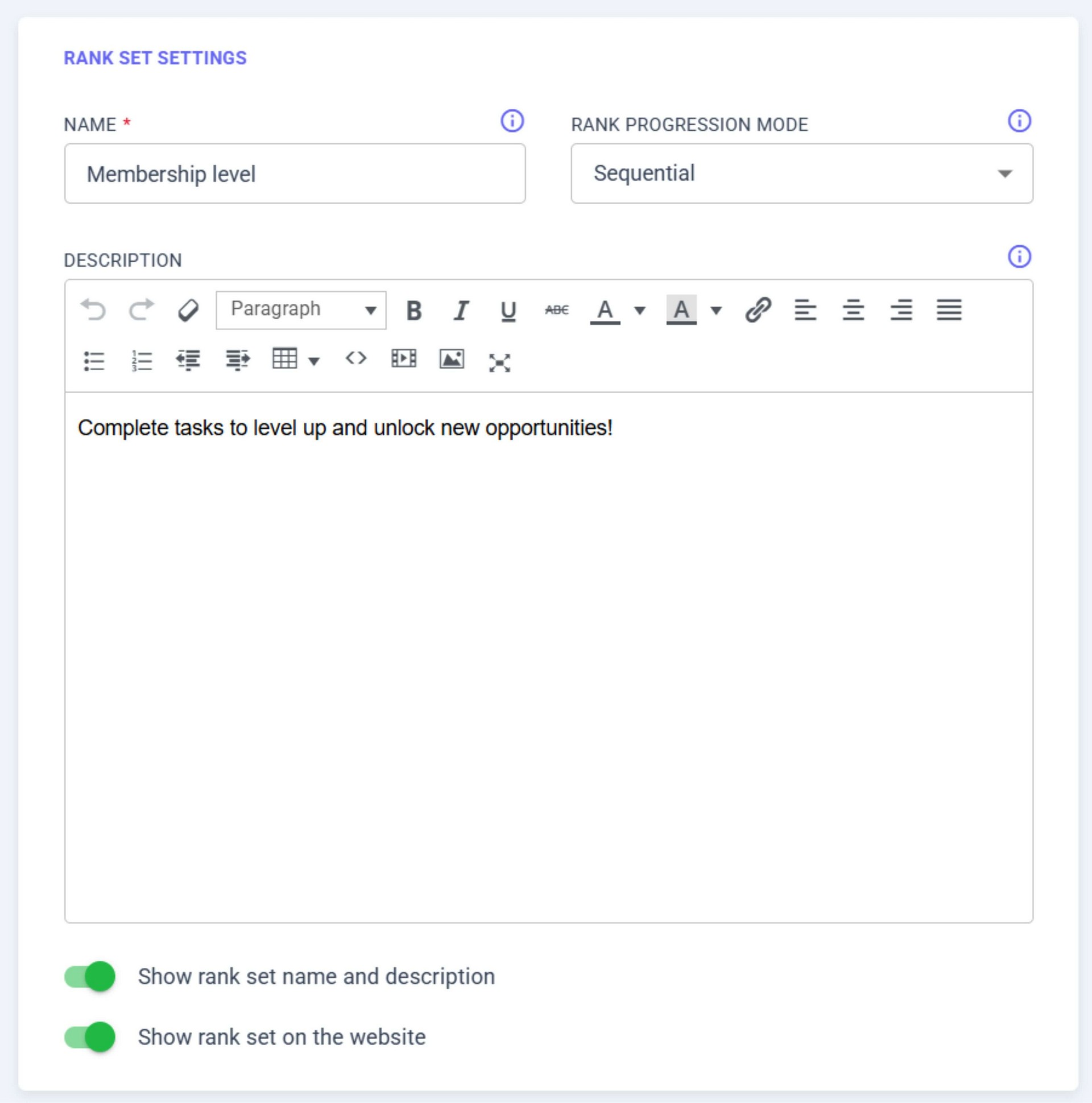
- NAME – let's call it "Membership level";
- RANK PROGRESSION MODE – choose SEQUENTIAL (Ranks will be assigned in order) or ANY ORDER (Ranks can be assigned out of order. For example, you can earn the third rank immediately, skipping the first and second);
- Turn on the SHOW RANK SET NAME AND DESCRIPTION to display the rank set's name and description on the Loyalty Page;
- Turn on the SHOW RANK SET ON THE WEBSITE to activate the rank set.
Rank configuration
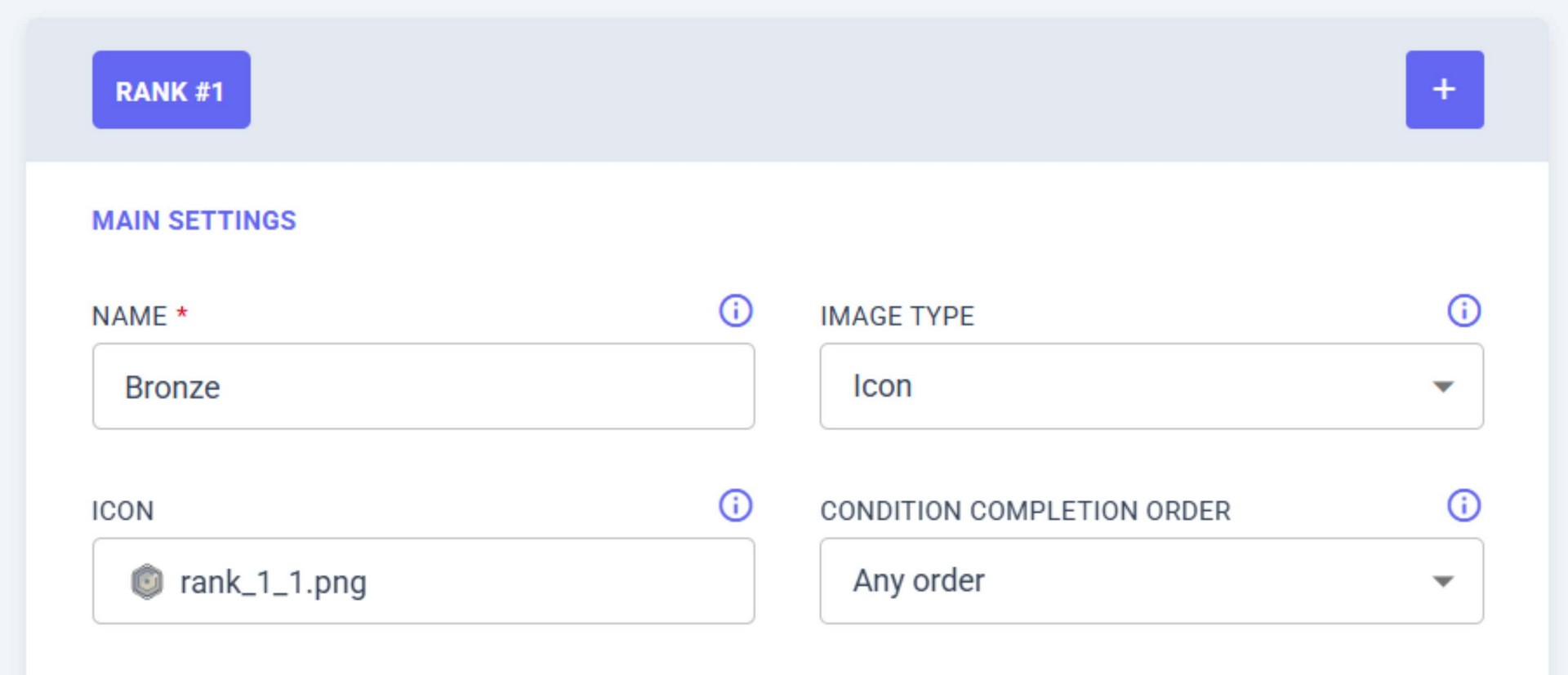
- NAME – let's call it "Silver";
- IMAGE TYPE – you can choose between ICON (an 80x80 icon will be displayed in the rank section) and IMAGE (an image covering the entire rank card will be displayed);
- ICON – you can select an icon from the pre-installed ones or upload your own;
- CONDITION COMPLETION ORDER – SEQUENTIAL (CONDITIONS must be completed in order) or ANY ORDER (CONDITIONS can be completed in any order);
- Click ADD.
Creating Condition for Rank
- Create a task that, when completed, the user will receive RANK. Click ADD CONDITION.
- From the list of conditions, select the one you need. For example, we'll choose EARN UNITS TO YOUR WALLET and configure it:
- a. CONDITION – Earn units to your wallet;
- b. GOAL – enter the value;
- c. WALLET – Choose the WALLET where we need to collect UNITS. The WALLET must have been created beforehand. See the instructions on how to create a WALLET;
- d. Click the ADD button.
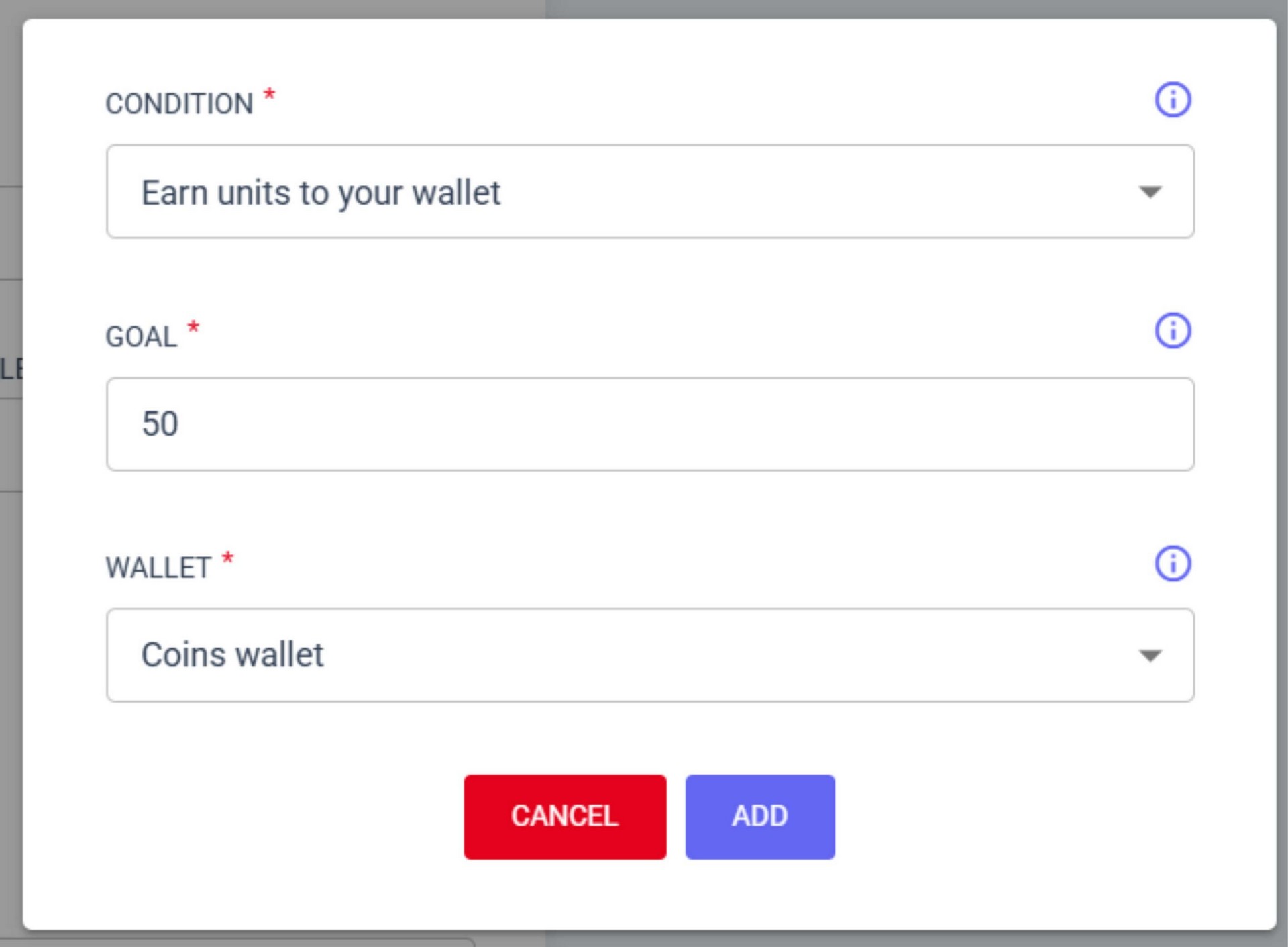
You can select an unlimited number of CONDITIONS to get RANK.
You can choose not to create a CONDITION. In that case, to obtain this RANK, create a MISSION in the CHALLENGES section and specify this RANK as the REWARD for completing the MISSION.
Creating Reward for Rank
- Choose a REWARD for completion. Click the ADD REWARD button.
- Choose the reward you need. For example, we'll choose FIXED DISCOUNT and configure it:
- a. REWARD – Fixed Discount;
- b. FIXED DISCOUNT AMOUNT – choose the discount amount;
- c. ORDERS QUOTA – choose how many times the discount can be applied, or leave empty for unlimited;
- d. SALE ITEMS – choose whether the discount can be applied to sale items;
- e. COMBINE WITH OTHER REWARDS – choose whether the discount can be combined with other rewards the user has;
- f. CATEGORIES – leave blank, meaning any category where the REWARD can be applied (or you can select the desired category);
- g. BRANDS – leave blank, meaning any brand where the REWARD can be applied (or you can select the desired brand);
- h. PRODUCT NAME, SKU, GTIN, UPC, EAN, OR ISBN – leave blank, meaning any product where the REWARD can be applied (or you can select the desired product);
- i. REWARD EXPIRATION – choose the reward's expiration date;
- j. DAYS AFTER EARNING – choose how many days the REWARD will be available after earning;
- k. Click the ADD button.
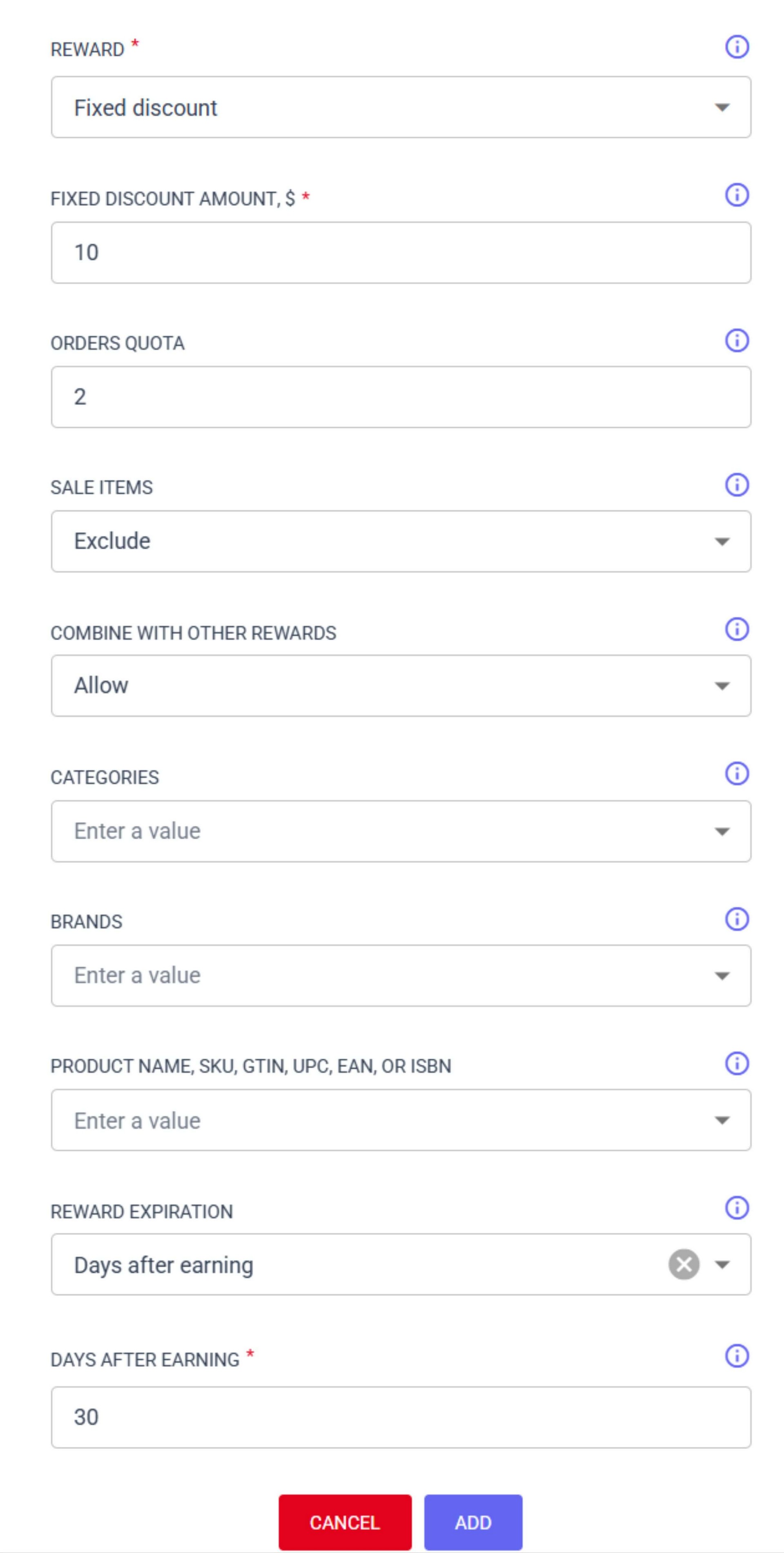
You can add other REWARDS for getting the rank.
Finishing rank creation
You can change the MAIN SETTINGS at any time.
You can change, delete, and add CONDITIONS and REWARDS at any time.
You can delete RANK by clicking the DELETE RANK button.
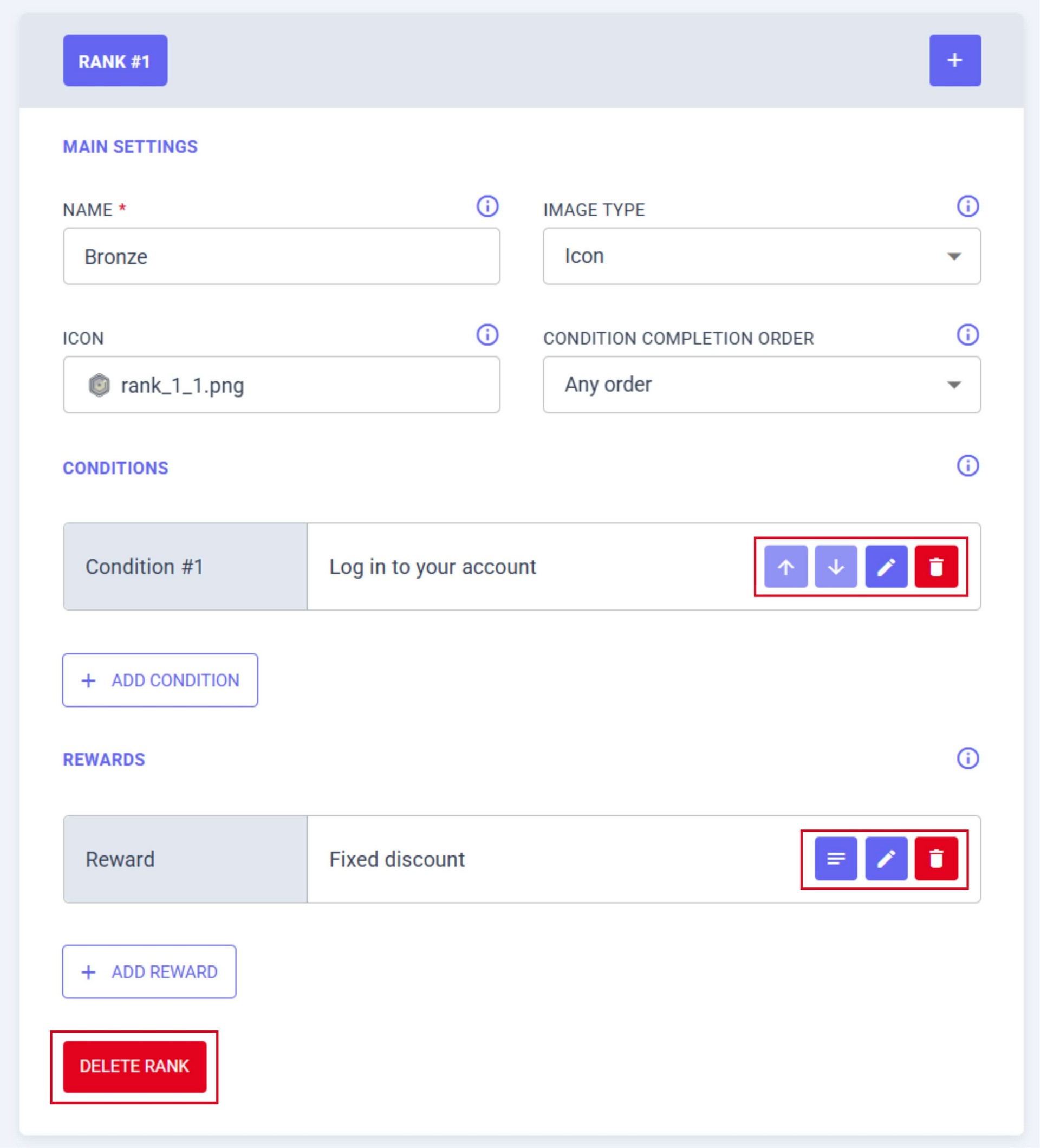
Finishing Rank Set creation
You can create an unlimited number of RANKS within a RANK SET.
To finish creating the RANK SET, click the ADD RANK SET button.

The created RANK SET will be displayed in the RANKS section.