
Documentation


Challenges
Configuration
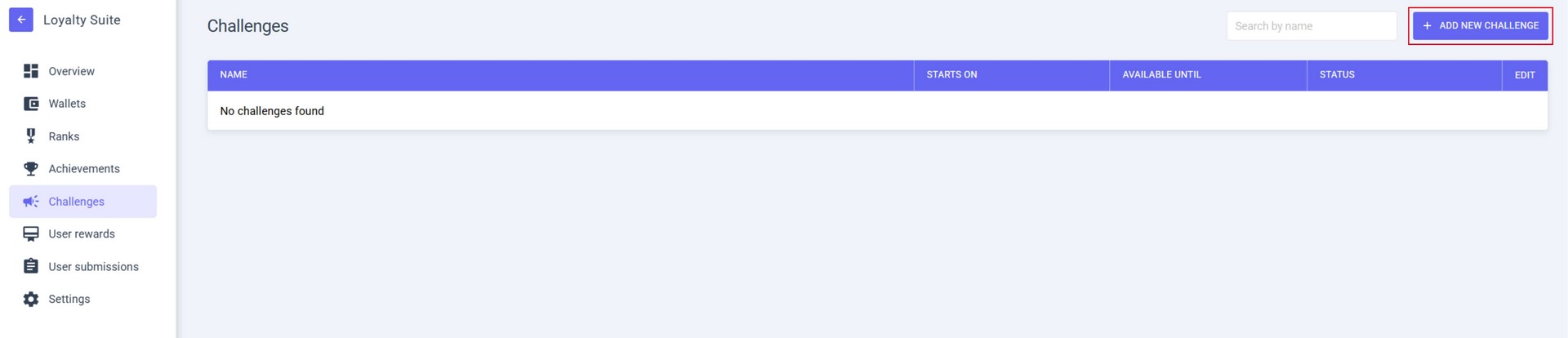
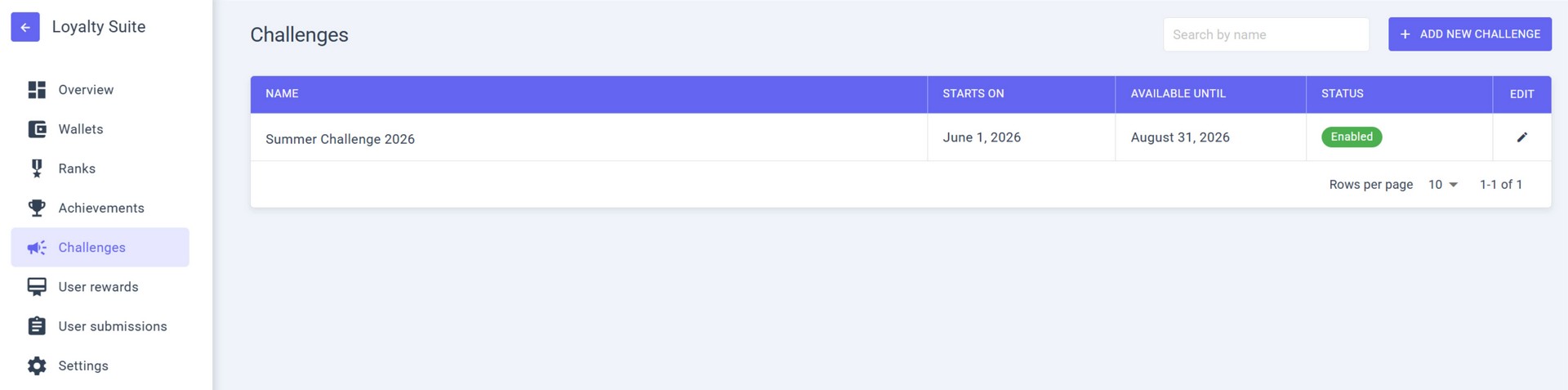
In the CHALLENGES section, you can see a list of all your CHALLENGES and their status.
To create a CHALLENGE, select ADD NEW CHALLENGE.
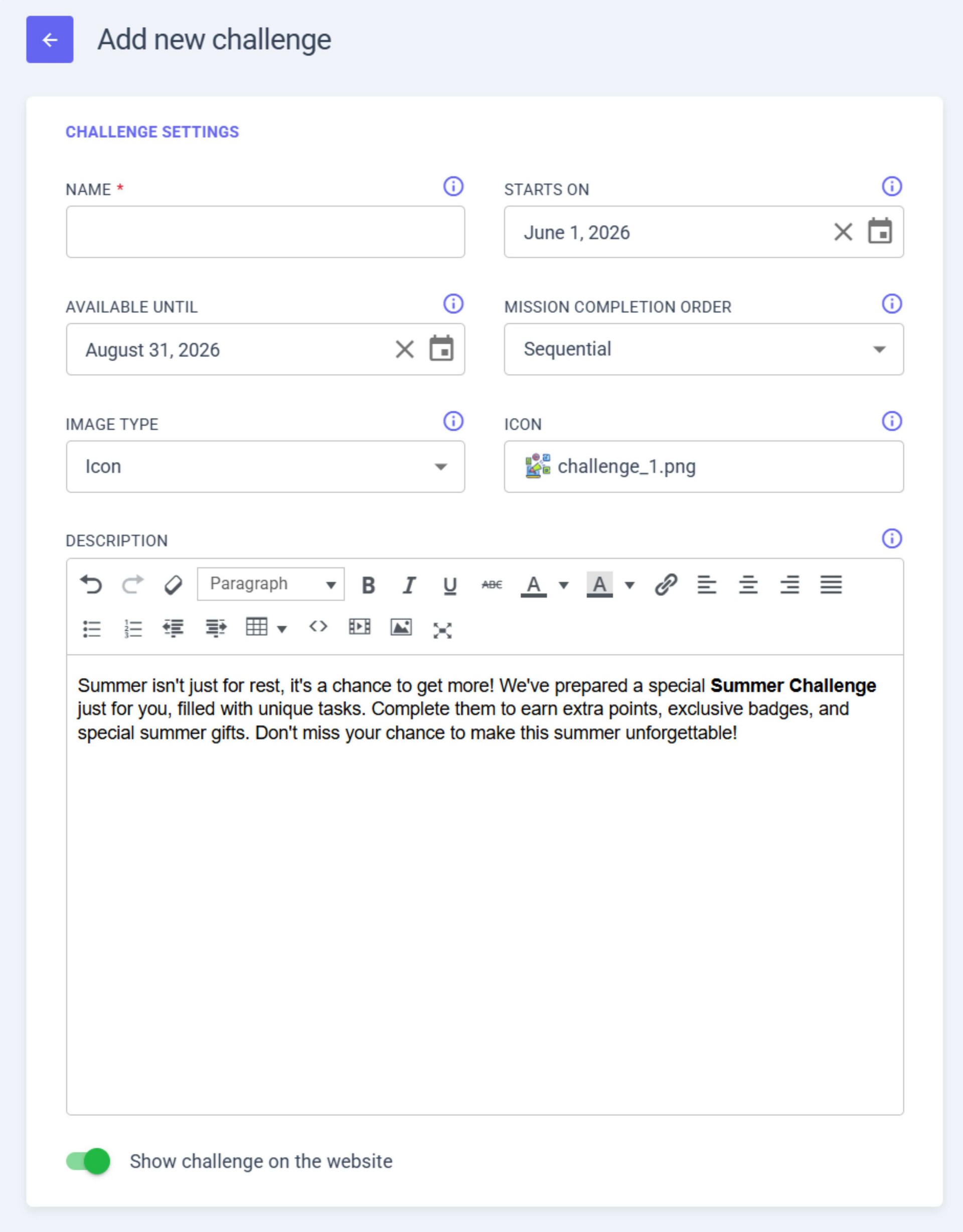
Challenge Settings
- NAME – let's call it "Summer Challenge 2026";
- STARTS ON – enter the start date;
- AVAILABLE UNTIL - enter the end date;
- MISSION COMPLETION ORDER - SEQUENTIAL (CONDITIONS must be completed in order) or ANY ORDER (CONDITIONS can be completed in any order);
- IMAGE TYPE - you can choose between ICON (an 80x80 icon will be displayed in the CHALLENGES section) or IMAGE (an image covering the entire card will be displayed);
- ICON - you can select an icon from the pre-installed ones or upload your own;
- DESCRIPTION - fill in the field with the following text: "Summer isn't just for rest, it's a chance to get more! We've prepared a special Summer Challenge just for you, filled with unique tasks. Complete them to earn extra points, exclusive badges, and special summer gifts. Don't miss your chance to make this summer unforgettable!";
- Turn on the SHOW CHALLENGE ON THE WEBSITE to activate the challenge.
Creating Rewards for Challenge
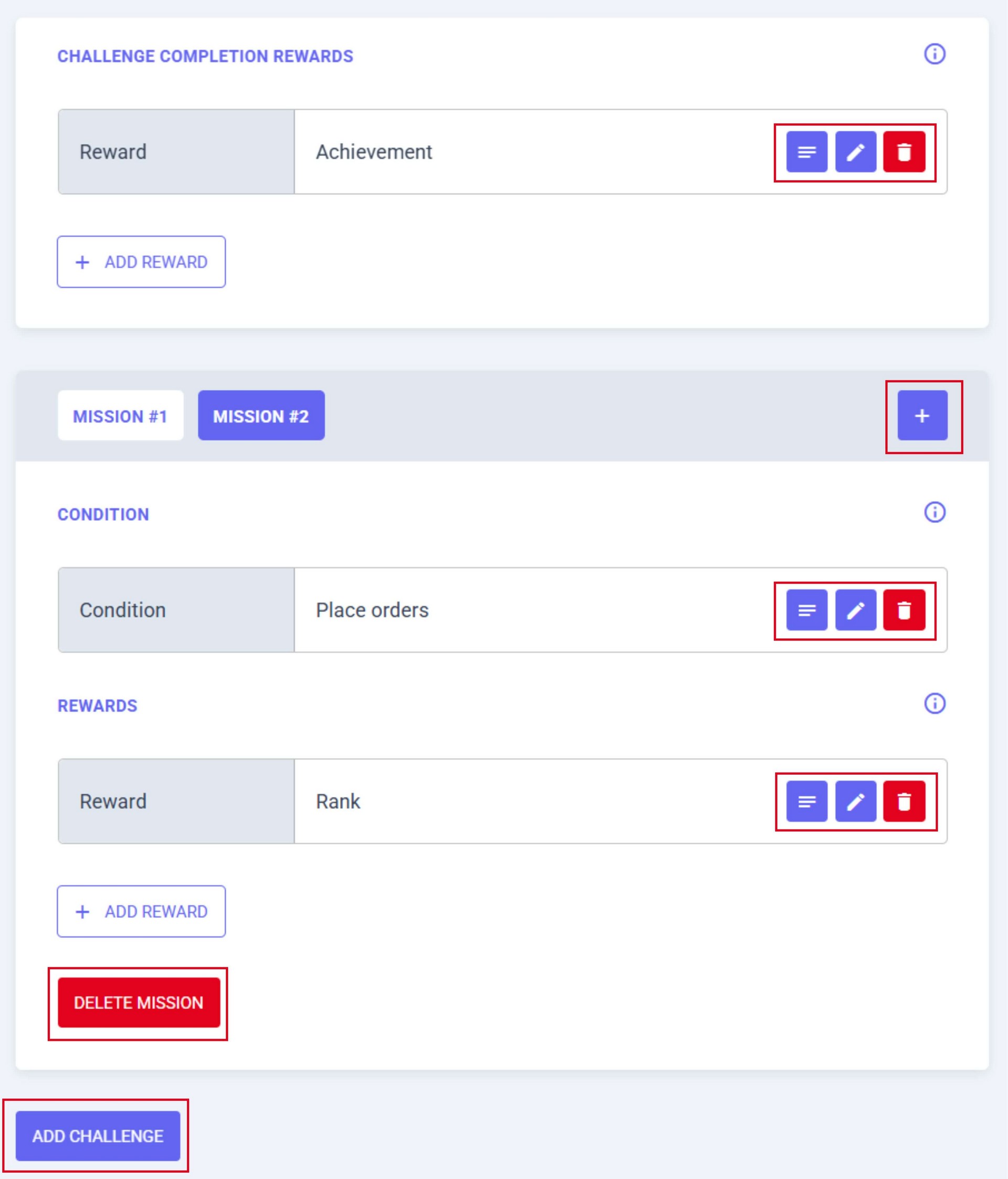
- Choose a REWARD for completing the entire CHALLENGE (after all MISSIONS are finished);
- For completing the whole CHALLENGE, we will give an ACHIEVEMENT as a REWARD. To do this, we will create an ACHIEVEMENT in the ACHIEVEMENTS section named "Summer Challenge 2026" without a CONDITION and REWARD (For details on creating an ACHIEVEMENT, see the ACHIEVEMENTS instructions);
- Click the ADD REWARD button;
- Choose the REWARD – ACHIEVEMENT and configure it:
- a. REWARD – Achievement;
- b. ACHIEVEMENT – choose the previously created ACHIEVEMENT named "Summer Challenge 2026";
- c. Click the ADD button.
You can add other REWARDS for completing this CHALLENGE.
Creating Mission for Challenge
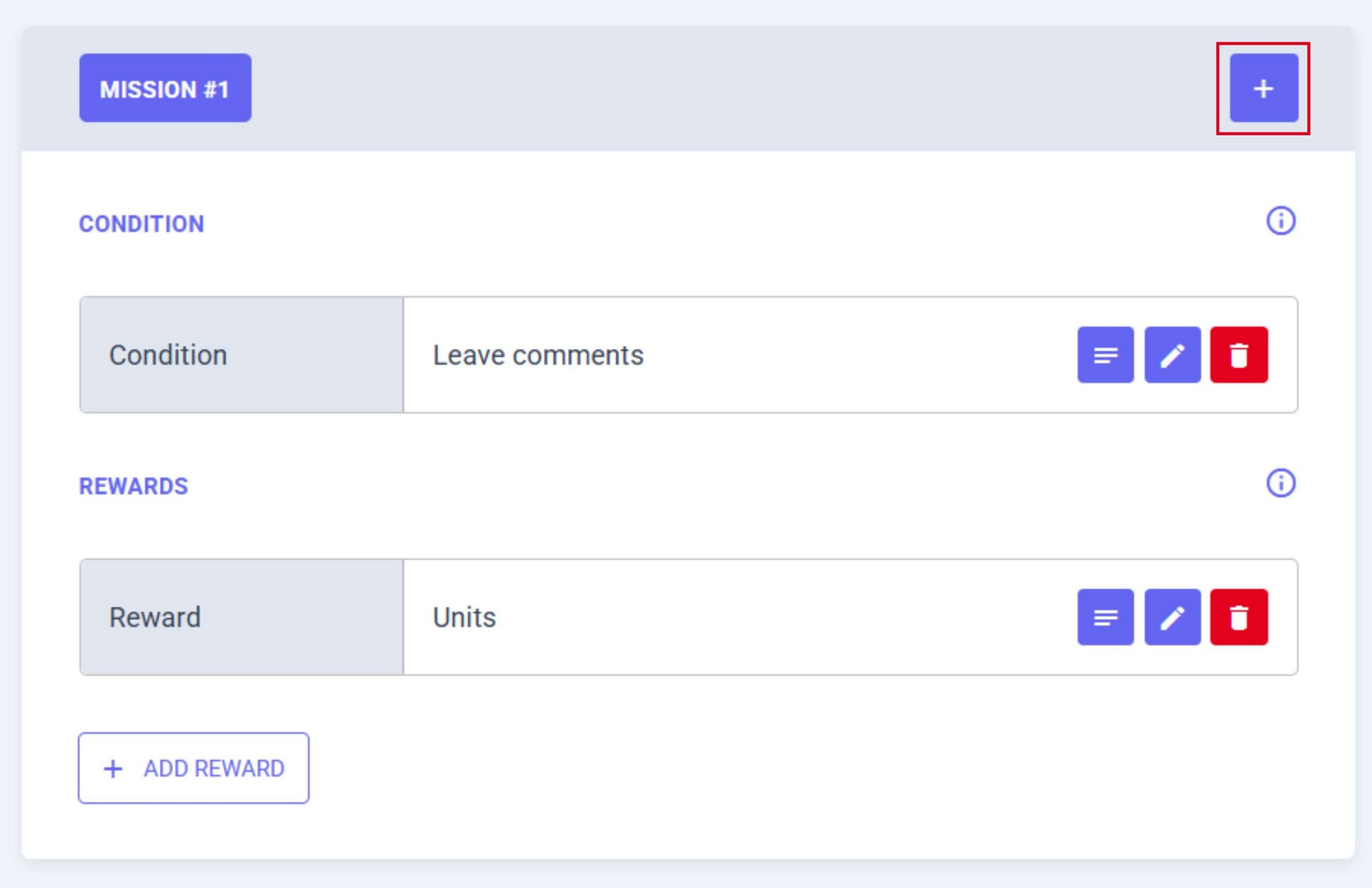
To create MISSION, click the + button
Creating Condition for Mission
- Create a task that, when completed, the user will complete MISSION. Click ADD CONDITION;
- From the list of conditions, select the one you need. For example, we'll choose PLACE ORDERS and configure it:
- a. CONDITION – Place orders;
- b. GOAL – enter the number of orders;
- c. CATEGORIES – leave blank, meaning any category (or you can select the desired category);
- d. BRANDS – leave blank, meaning any brand (or you can select the desired brand);
- e. PRODUCT NAME, SKU, GTIN, UPC, EAN, OR ISBN – leave blank, meaning any product (or you can select the desired product);
- f. Click the ADD button.
Creating Reward for Mission
- Choose the REWARD for completion. Click the ADD REWARD button;
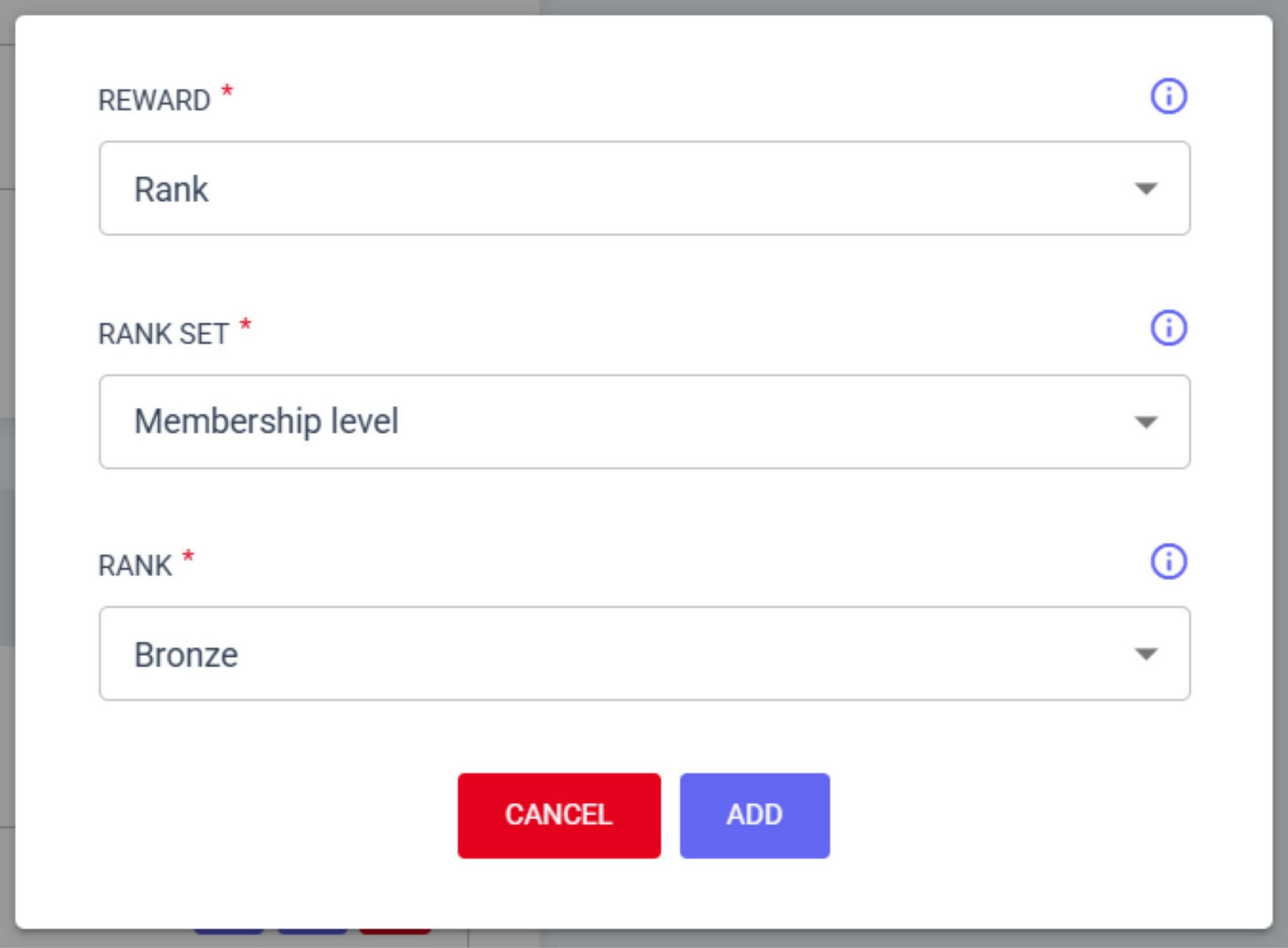
- Choose the reward you need. For example, we'll choose RANK and configure it:
- a. REWARD – Rank;
- b. RANK SET – choose the previously created RANK SET "Membership level" (The RANK SET must have been created beforehand. See the instructions on how to create RANKS);
- c. RANK – choose the previously created RANK that will be awarded for completing MISSION – "Bronze". The RANK must have been created beforehand. See the instructions on how to create RANKS. If the user already has this RANK or higher, the reward will not be applied;
- d. Click the ADD button.
You can add other REWARDS for completing MISSION.
Finishing challenge creation
You can change the CHALLENGE SETTINGS at any time.
You can change, delete, and add MISSIONS, as well as CONDITIONS and REWARDS at any time.
You can create an unlimited number of MISSIONS within a CHALLENGE.
To finish creating the CHALLENGE, click the ADD CHALLENGE button.
The created challenge will be displayed in the CHALLENGES section.