
Documentation

Achievements
Configuration
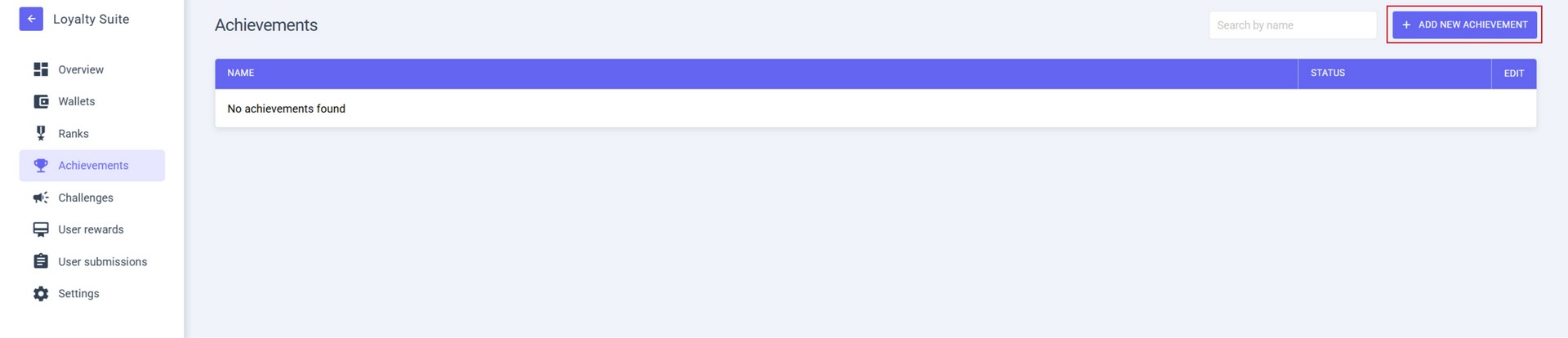
In the ACHIEVEMENTS section you can see the full list of your ACHIEVEMENTS and their status.
To create a new ACHIEVEMENT, click ADD NEW ACHIEVEMENT.
Main Settings
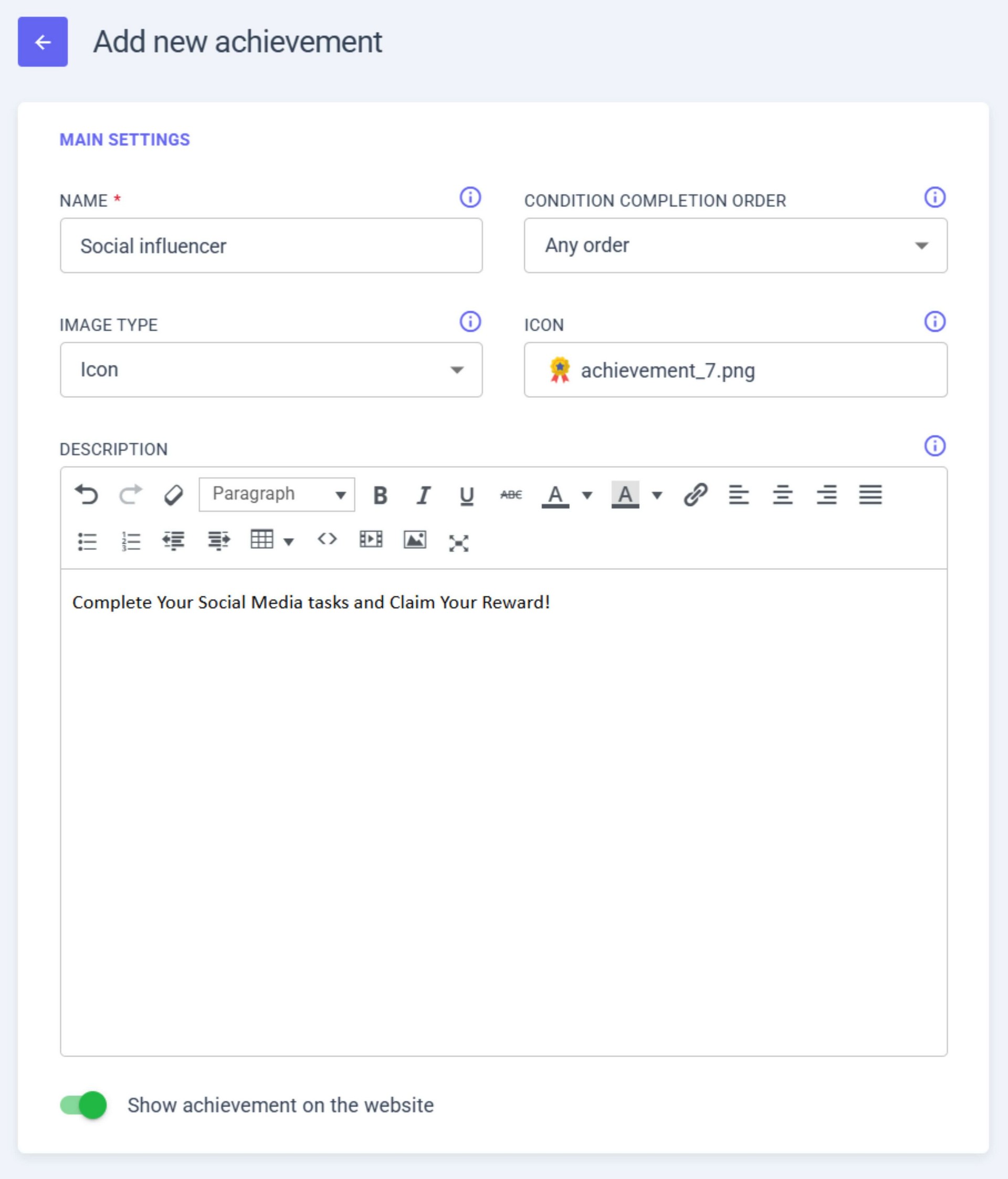
- NAME – let’s call it “Social Influencer”;
- CONDITION COMPLETION ORDER – choose either SEQUENTIAL (conditions must be completed one after another) or ANY ORDER (conditions can be completed in any order);
- IMAGE TYPE - choose between ICON (an 80x80 icon will be displayed) or IMAGE (a full-size picture will be displayed);
- ICON - you can select an icon from the pre-installed ones or upload your own;
- DESCRIPTION - add a note: “Complete Your Social Media tasks and Claim Your Reward!”;
- Turn on the SHOW ACHIEVEMENT ON THE WEBSITE to activate the achievement.
Creating Condition for Achievement
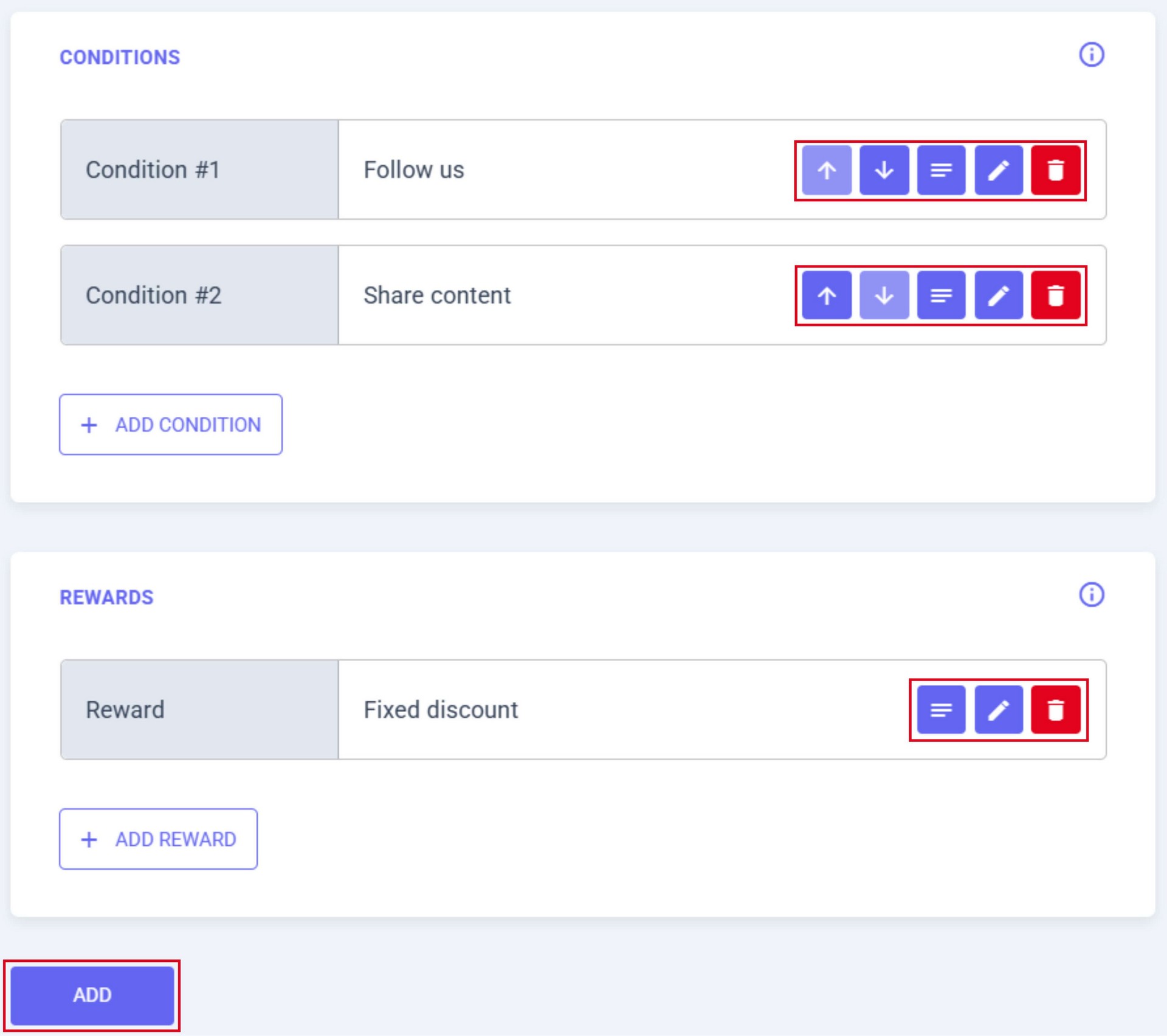
- Click ADD CONDITION;
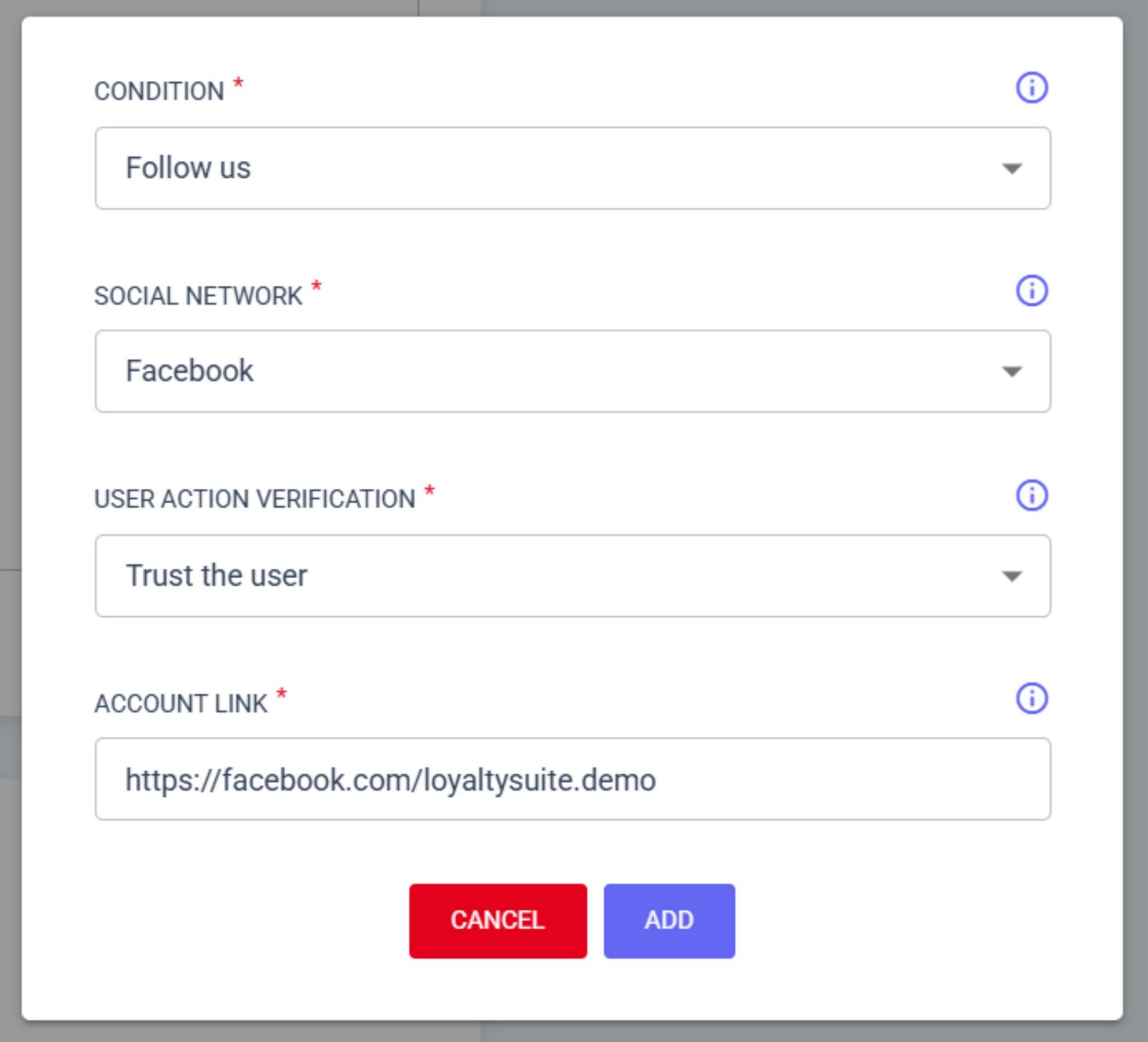
- From the list, choose FOLLOW US and configure:
- a. CONDITION – Follow us;
- b. SOCIAL NETWORK – Facebook;
- c. USER ACTION VERIFICATION – choose either VERIFY MANUALLY (check user submission manually) or TRUST THE USER (task is considered completed once the user clicks share);
- d. ACCOUNT LINK – enter the link to your account page, e.g., https://facebook.com/loyaltysuite.demo;
- e. Click ADD.
You can also skip conditions and assign this achievement as a reward for a mission in the CHALLENGES section.
Creating Reward for Achievement
- Click ADD REWARD;
- Configure the reward. For example:
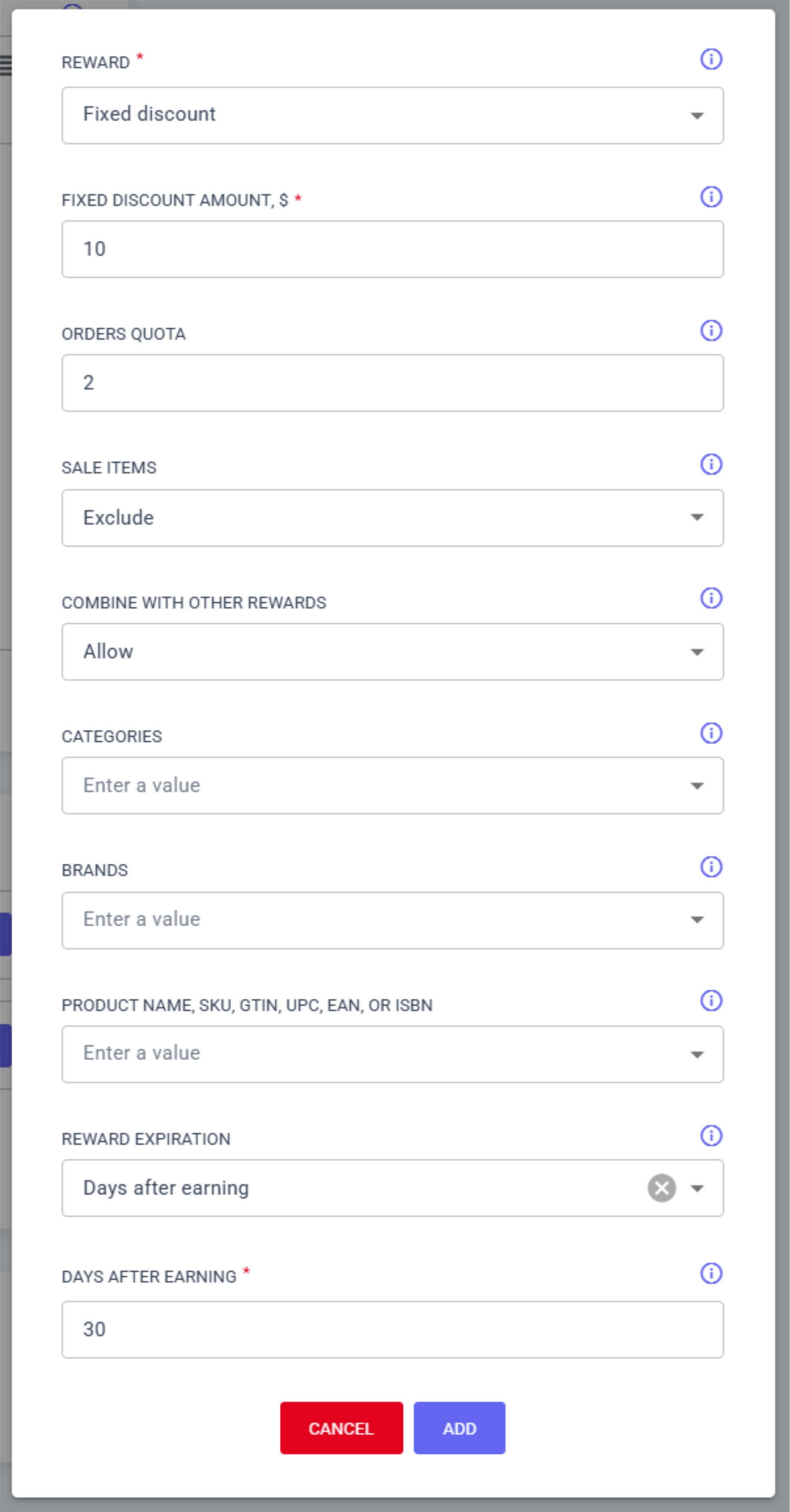
- a. REWARD – Fixed Discount;
- b. FIXED DISCOUNT AMOUNT – choose the discount amount;
- c. ORDERS QUOTA – choose how many times the discount can be applied, or leave empty for unlimited;
- d. SALE ITEMS – choose whether the discount can be applied to sale items;
- e. COMBINE WITH OTHER REWARDS – choose whether the discount can be combined with other rewards the user has;
- f. CATEGORIES – leave blank, meaning any category where the REWARD can be applied (or you can select the desired category);
- g. BRANDS – leave blank, meaning any brand where the REWARD can be applied (or you can select the desired brand);
- h. PRODUCT NAME – leave blank, meaning any product where the REWARD can be applied (or you can select the desired product);
- i. REWARD EXPIRATION – choose the reward's expiration date;
- j. DAYS AFTER EARNING – choose how many days the REWARD will be available after earning;
- k. Click ADD.
You can also add multiple rewards for one achievement.
Finishing achievement creation
You can edit main settings, conditions, or rewards anytime. To finalize, click ADD.
The created ACHIEVEMENT will appear in the ACHIEVEMENTS list.