User Submissions
How to Use
Let's create an ACHIEVEMENT with a CONDITION that requires administrator verification (USER SUBMISSIONS).
- Go to the ACHIEVEMENTS section and select ADD NEW ACHIEVEMENT.
- Fill out the MAIN SETTINGS for the ACHIEVEMENT.
- Click ADD CONDITION.
- From the list of conditions, select FOLLOW US and configure it:
- a. CONDITION – Follow us;
- b. SOCIAL NETWORK – choose the social network the user must follow;
- c. USER ACTION VERIFICATION – choose the verification type for the condition: VERIFY MANUALLY. In the USER SUBMISSIONS menu, you will receive either the user’s account name to verify if they are among the followers, or a link to the content they shared/published (if the condition was SHARE CONTENT or PUBLISH CONTENT). If we choose TRUST THE USER, the task will be considered completed automatically after the user clicks the share button, and a verification request will not appear in USER SUBMISSIONS);
- d. ACCOUNT LINK – enter the link to the account the user should follow, e.g., "https://facebook.com/loyaltysuite.demo";
- e. Click the ADD button.

5. Finish creating the ACHIEVEMENT by clicking the ADD button.

6. Now, the ACHIEVEMENT with the "Follow us on Facebook" task is available to users.
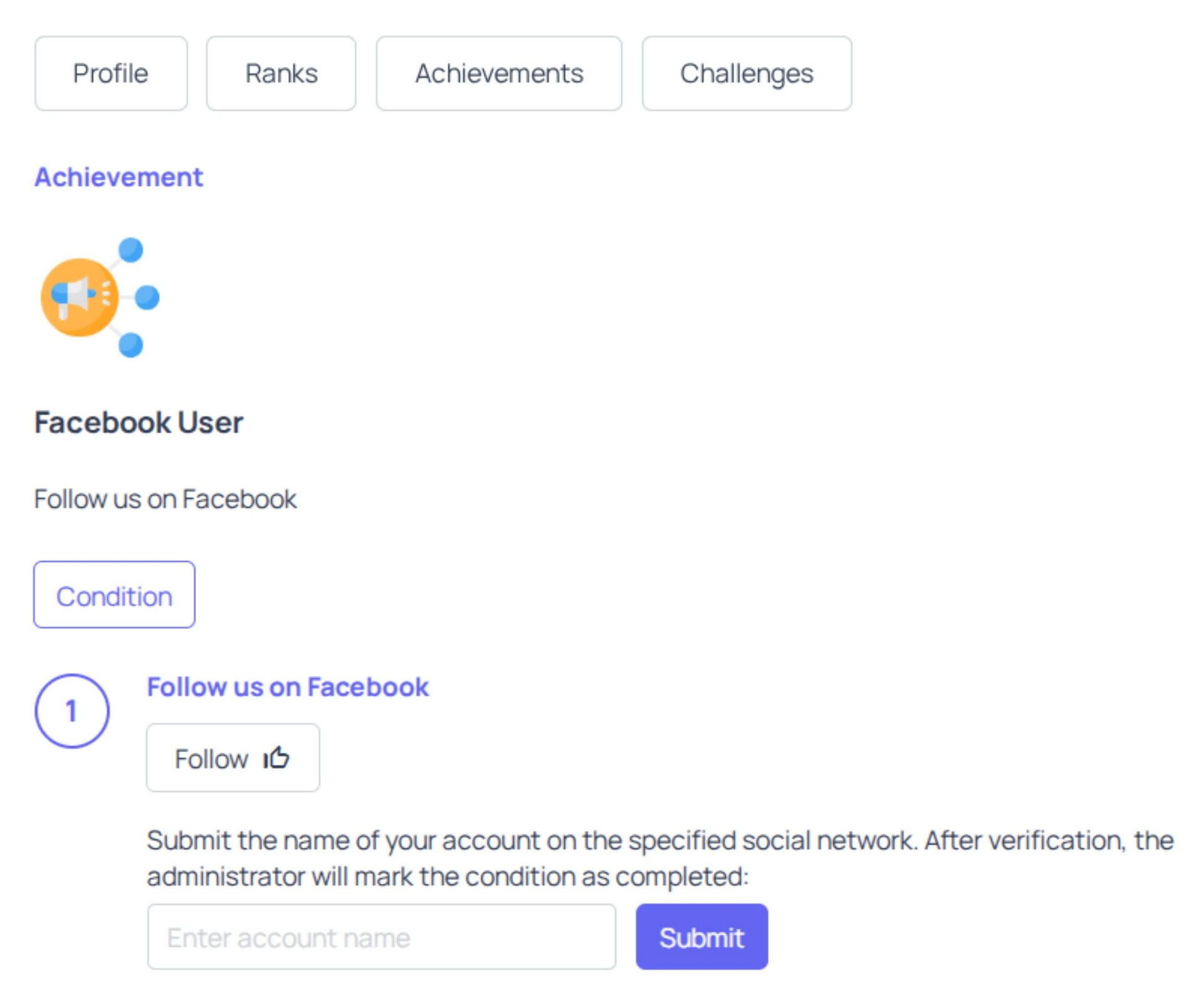
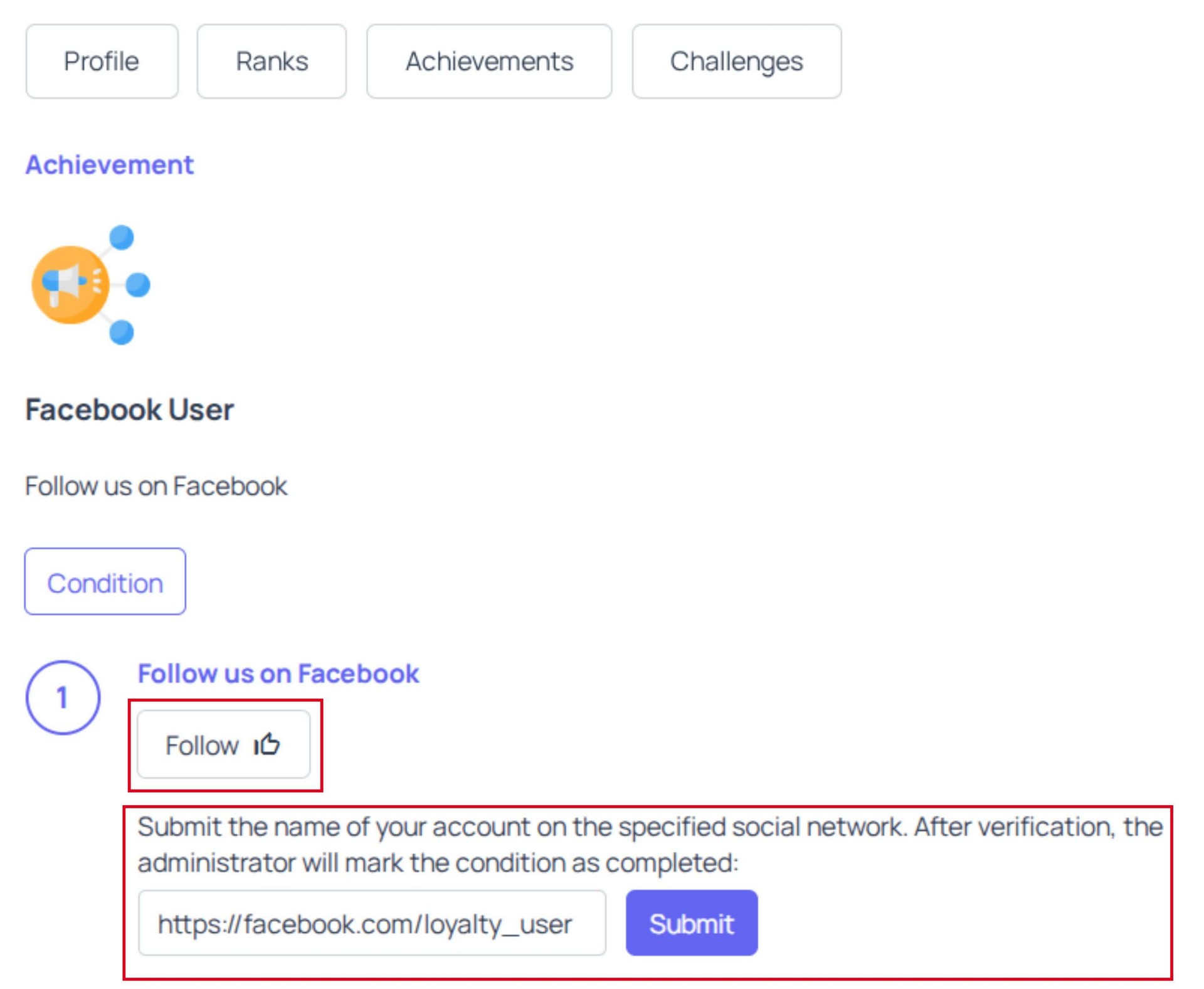
7. To complete the task, the user must click the Follow button, which will take them to the page we entered, and subscribe.
8. The user must then return and enter the name of their account from which they followed and click the Submit button. A message will appear: "Your submission is under review".
9. A new verification request for the completed task has appeared in the USER SUBMISSIONS menu.
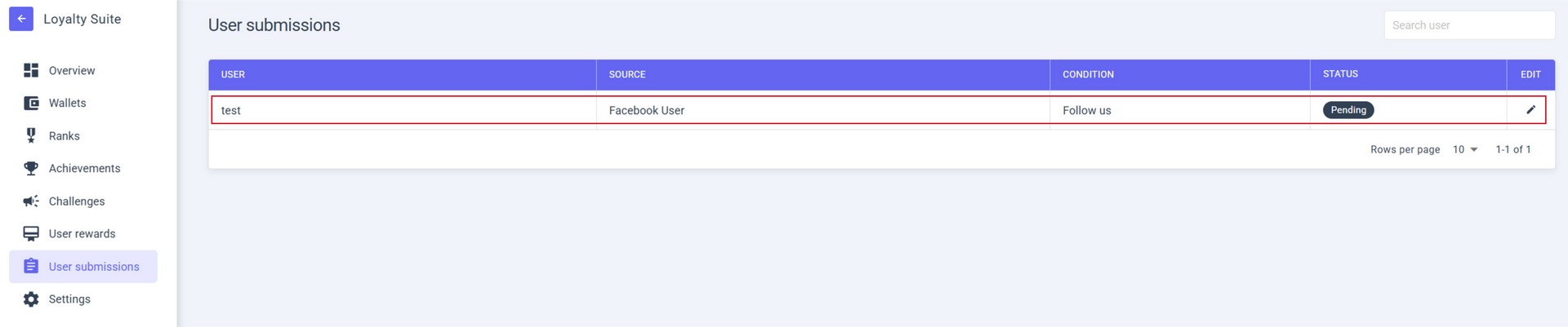
10. Open the request by clicking the EDIT button.
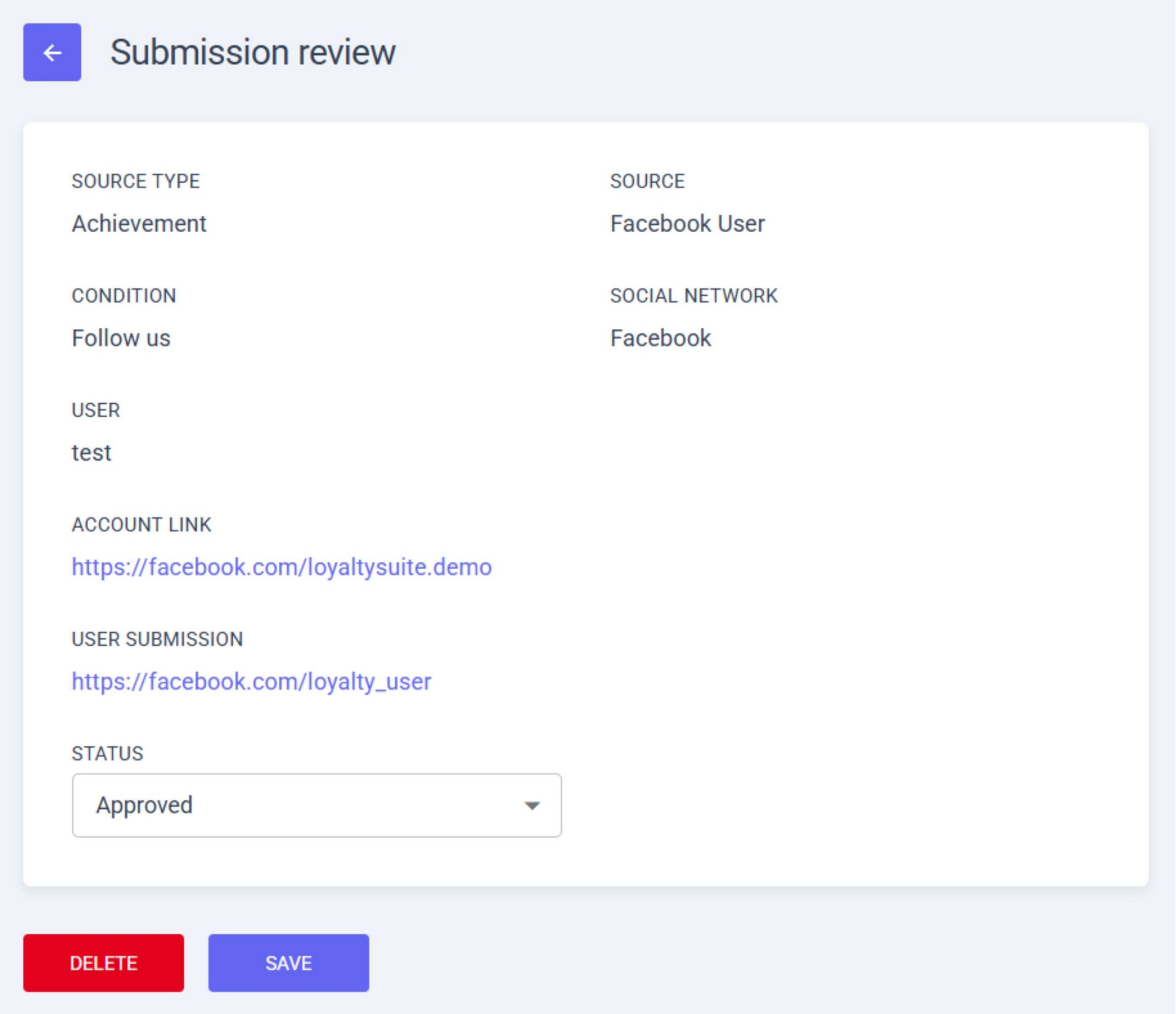
11. Check if the task has been completed and, depending on the result, change the PENDING status to one of the following:
- a. APPROVED – The CONDITION is considered complete.
- b. REJECTED – The CONDITION is not complete; the user will receive a notification that the task was not finished.
12. Select APPROVED.
13. Click the SAVE button.